 Terminal Guide
iTerm2
Feature-rich terminal emulator for macOS with split panes, search, autocomplete, and shell integration.
Official WebsiteFeatures
Installation
brew install --cask iterm2Why Use iTerm2?
iTerm2 is the most popular terminal emulator among macOS users, providing features that far exceed macOS's native Terminal.app.
Screen Splitting
Freely split horizontally and vertically. Efficiently manage multiple sessions on a single screen.
Advanced Search
Search with regex support. Quickly find desired output across entire scrollback history.
Shell Integration
Navigate command history, capture output, and upload/download files.
Trigger Feature
Automatically react to specific text patterns. Configure highlighting, notifications, and command execution.
Main Features
Screen Splitting (Split Panes)
Split windows into multiple panes to display multiple sessions simultaneously. Dramatically improves workflow efficiency, such as executing commands while monitoring server logs.
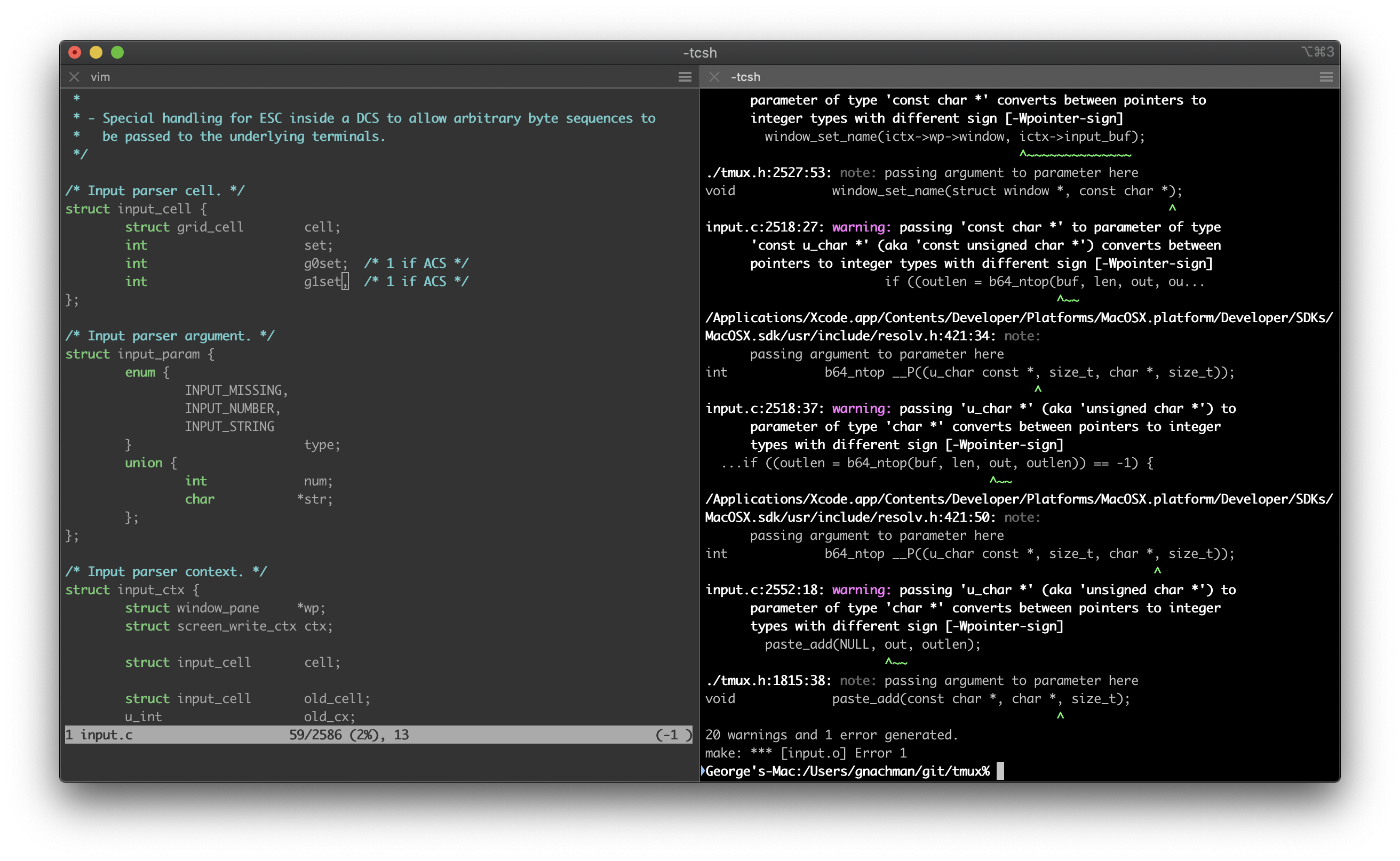
Source: iterm2.com
Hotkey Window
Call up a terminal that slides down from the top of the screen with a global hotkey. Access the terminal instantly regardless of which application you're using.
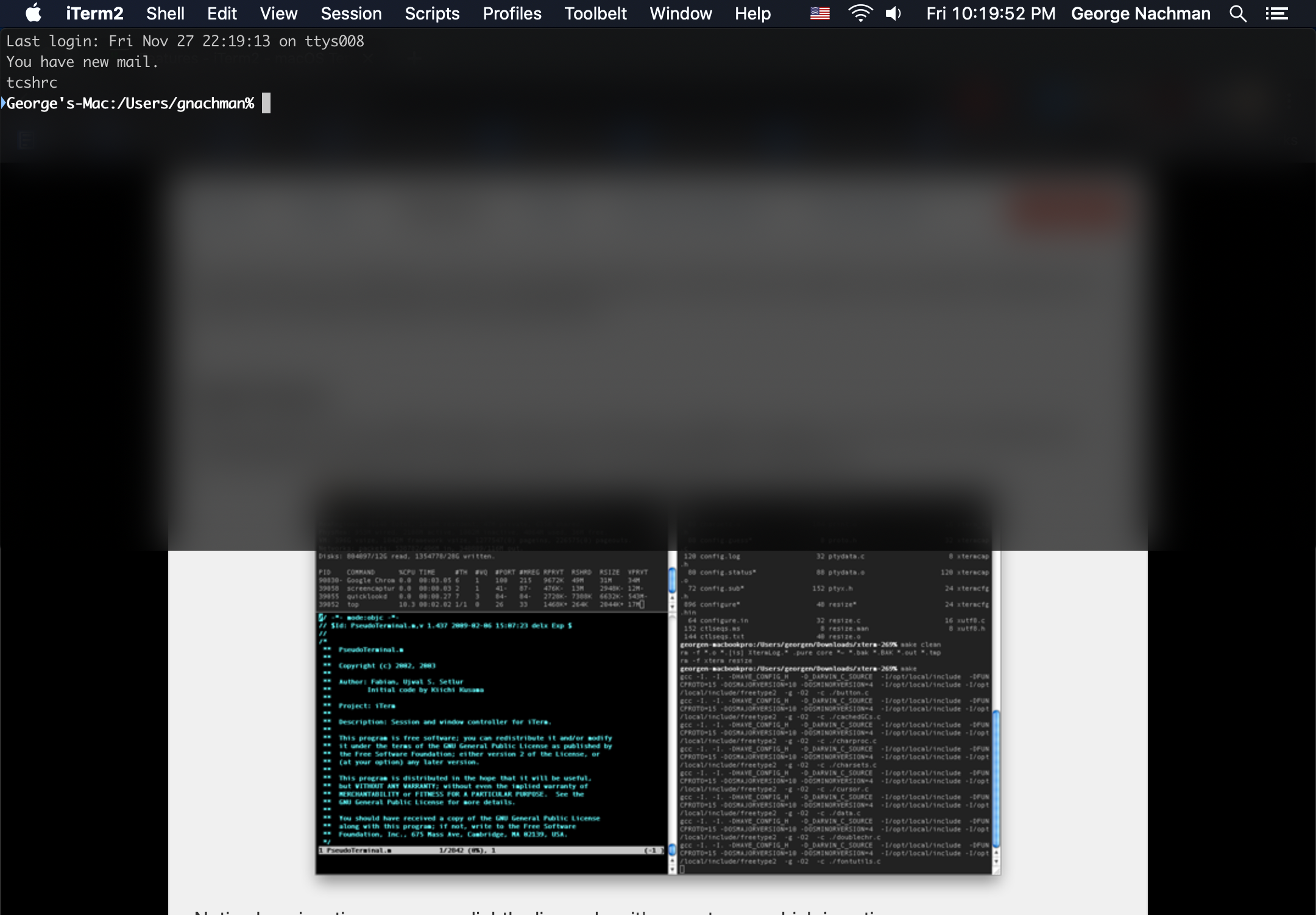
Source: iterm2.com
Search Function
Powerful search function to search entire scrollback history. Supports regex and enables complex pattern matching.
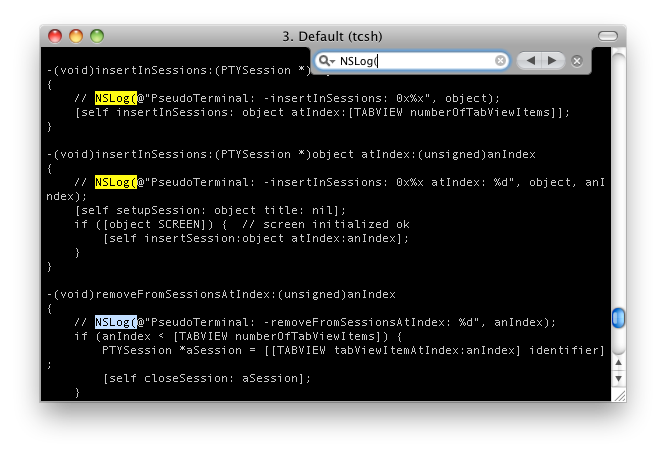
Source: iterm2.com
Installation
Install with Homebrew (Recommended)
# Install via Homebrew Cask
brew install --cask iterm2
Download from Official Website
Download the latest zip file fromhttps://iterm2.com/downloads.htmland move it to the Applications folder.
Install Shell Integration
Enabling shell integration allows you to use advanced features like command history navigation and file transfers.
# Auto-install from iTerm2 menu
# iTerm2 > Install Shell Integration

# Or manually install (for zsh)
curl -L https://iterm2.com/shell_integration/zsh -o ~/.iterm2_shell_integration.zsh
echo 'source ~/.iterm2_shell_integration.zsh' >> ~/.zshrc
Basic Configuration
Color Scheme Configuration
Configure color schemes in Preferences > Profiles > Colors. Popular color schemes can be obtained from GitHub.
# Download iTerm2 color schemes
git clone https://github.com/mbadolato/iTerm2-Color-Schemes.git

# Preferences > Profiles > Colors > Color Presets... > Import
# Import .itermcolors files from the schemes folder
Font Configuration
Configure fonts in Preferences > Profiles > Text. Using Nerd Fonts ensures icons and glyphs display correctly.
# Install Nerd Font (example: Hack Nerd Font)
brew tap homebrew/cask-fonts
brew install --cask font-hack-nerd-font

# Configure in iTerm2
# Preferences > Profiles > Text > Font > Hack Nerd Font
Hotkey Window Configuration
Configure to call the terminal anytime with a global hotkey.
# Configuration steps
# 1. Preferences > Keys > Hotkey
# 2. Click "Create a Dedicated Hotkey Window"
# 3. Set your preferred key (e.g., ⌥Space)
# 4. Configure options like "Floating window" and "Pin hotkey window"

# Recommended settings
# - Hotkey: ⌥Space (Option + Space)
# - Animate showing and hiding: ON
# - Floating window: ON
Keyboard Shortcuts
| Shortcut | Function |
|---|---|
⌘D | Vertical split (new pane on right) |
⌘⇧D | Horizontal split (new pane below) |
⌘[ / ⌘] | Move between panes |
⌘⌥←/→ | Move between tabs |
⌘F | Open search panel |
⌘⇧H | Show paste history |
⌘; | Autocomplete |
⌘⇧Enter | Maximize/restore current pane |
⌘⌥E | Type to all tabs simultaneously (Broadcast) |
⌘⌥B | Instant Replay (rewind time) |
Tips
- *tmux Integration: iTerm2 has tmux integration, allowing you to treat tmux sessions as native tabs. Connect using
tmux -CC. - *Trigger Feature: In Preferences > Profiles > Advanced > Triggers, you can set up actions (highlighting, notifications, command execution, etc.) that react to specific patterns.
- *Password Manager: In Preferences > Profiles > Advanced > Smart Selection, you can integrate with a password manager to securely enter passwords.
- *Use Profiles: Create profiles for different purposes (development, production, remote servers, etc.) and change color schemes or settings to see at a glance which environment you're connected to.
- *Python API: iTerm2 provides a Python API for advanced automation and customization. Install with
pip install iterm2.
Related Articles
WezTerm - GPU-Accelerated Terminal
GPU-accelerated cross-platform terminal with Lua configuration
Alacritty - GPU-Accelerated Terminal
Fast, cross-platform GPU-accelerated terminal emulator
Kitty - GPU-Based Terminal
GPU-based terminal with image display and extensibility